Weekend Project · 12 min read
Tab Scoot: A Self-Assigned Project to Ship a Chrome Extension
How I set myself the goal of building and publishing Tab Scoot—a local-first Chrome extension—and used Cursor Cloud agents with GitHub integration (GPT-5.5 High) to ship faster while learning how developers can leverage AI-assisted workflows today.
Most of my side projects start with a practical itch. This one was deliberate: give myself a project with a clear finish line—build a Chrome extension, put it on the Chrome Web Store, and host a real privacy policy URL. No vague “someday” backlog item. Ship it.
It was also a chance to use Cursor Cloud agents with GitHub integration on a real product—not a sandbox demo—with two repos, store requirements, and a deadline.
The result is Tab Scoot: a lightweight, local-only extension that helps you tame tab clutter with set-aside mode, saved tab groups, a fuzzy command palette, recently closed restore, and an optional memory saver. The marketing and privacy pages live at tabscoot.stanho.dev.
Why I gave myself this project
When I’m troubleshooting, Chrome tabs multiply fast—runbooks, logs, portal pages, a few “just checking” tabs I mean to close later. Native tab groups help, but I wanted something closer to a “zen mode”: keep the tab I’m on, stash the rest, and bring them back when I pick the issue back up. I also wanted named snapshots of a window’s tabs and a quick search across open tabs and saved groups.
Chrome extensions were new territory for me, so the project doubled as a way to practise agent-driven development with full repo context—closer to pairing on branches and reviewing diffs than typing every file in isolation.
What Tab Scoot does
Everything runs in the browser. There is no account and no project-operated cloud—stash, saved groups, and preferences use chrome.storage.local.
| Feature | What it does |
|---|---|
| Set-aside (Zen) | Keep only the active tab in the window; stash the rest and restore later from the popup or shortcut. |
| Saved groups | Name and save a snapshot of the window’s tabs; reopen or remove groups from the popup. |
| Command palette | Fuzzy search (Fuse.js) across open tabs and saved groups; jump with Enter. Suggested shortcut: Ctrl+Shift+K / Cmd+Shift+K. |
| Recently closed | Surfaces Chrome’s own recently closed list via chrome.sessions—restore in one click. |
| Optional memory saver | Periodically discards eligible background http/https tabs with chrome.tabs.discard to reduce RAM; click a tab to reload. |
Keyboard shortcuts for set-aside are suggested as Ctrl+Shift+Z / Cmd+Shift+Z under chrome://extensions/shortcuts if Chrome has those keys free.
A quick walkthrough of the extension in use—set-aside, saved groups, and the command palette:
Product demo: Tab Scoot in Chrome (not an agent test run).
You can try it here: Tab Scoot on the Chrome Web Store · Product site & privacy
Marquee asset used on the product site and Chrome Web Store listing (1400×560).
Small promo tile for store listing placements (440×280).
Two repositories, one product
I split the work intentionally:
- Extension codebase (
TabScootExtensionon GitHub)—Manifest V3, TypeScript, React popup, service worker, content script for the palette, Vitest unit tests, and a Puppeteer-based extension smoke test that loadsdist/in real Chromium. - Marketing + privacy site (
TabScooton GitHub Pages at tabscoot.stanho.dev)—static HTML/CSS so the Web Store Privacy policy URL does not depend on the extension repo being public. Screenshots and promo images are copied fromstore-assets/chrome-web-store/in the extension repo so GitHub Pages stays self-contained.
The extension repo stays private; the TabScoot site repo is public for GitHub Pages and the store privacy link.
Tech stack (extension)
- Manifest V3 with a service worker background script
- Vite + @crxjs/vite-plugin for bundling the extension
- React 19 + TypeScript for the popup and command palette UI
- Tailwind CSS for styling
- Fuse.js for fuzzy palette search
- Vitest for unit tests; Puppeteer/Chromium for automated smoke tests in CI
Cursor Cloud agents, GitHub integration, and GPT-5.5 High
Tab Scoot was built with AI assistance throughout—not by coding every file from scratch on my own. The Plan and MVP phase stayed in the Cursor editor; most of the post-MVP loop went through Cursor Cloud agents with GitHub wired to my extension and marketing repos. That pairing was the main thing I wanted to get better at: not just in-editor suggestions, but an agent that can read the codebase remotely, propose changes, and work on branches while I review from Desktop View or the pull request.
Gemini PRD first, then a Cursor Plan
Before the Cloud agents wrote code, I started in Google Gemini. I prompted it to produce a PRD (Product Requirements Document) for the extension—local-only data handling, store listing needs (privacy URL, screenshots, review), and scope boundaries. That gave me one document to read and edit as product owner, instead of jumping straight into implementation detail.
I then fed that PRD into the Cursor editor and asked it to generate a Plan—phased milestones, suggested repo layout, Manifest V3 approach, test strategy, and store-asset tasks. I worked through that Plan in the editor first until I had an MVP: popup, set-aside, and enough working behaviour to load unpacked in Chrome and click through the core flows. That step mattered—I wanted a small, real build before handing the repo to an agent.
After the MVP, I switched to Cursor Cloud agents with GitHub integration and branching. Cloud runs targeted my repos remotely; each iteration landed on a branch covering feature polish, store assets, the privacy site, and—importantly—testing: Vitest, the extension smoke script, and CI. I reviewed diffs and pull requests, ran the same commands locally when I wanted to double-check, and merged when it looked right. When scope crept, I updated the PRD or Plan first, then pointed the Cloud agent at the new target.
It is a simple chain that worked well: Gemini for the what and why → Cursor Plan + editor for the MVP → Cloud agents + GitHub + branches to iterate and test.
Tests the agent wrote and ran
A big part of the learning curve was letting the agent own the test loop, not only the feature code. For Tab Scoot that included:
- Unit tests (Vitest) — pure logic for stash rules, group naming, palette query helpers, and storage shapes.
- Extension smoke tests — a Puppeteer/Chromium script that loads
dist/, drives the popup, exercises set-aside, saved groups, the command palette, and memory-saver prefs, then prints a JSON summary for CI. - Running the suite in-session — the agent would execute
npm test,npm run build, andnpm run test:extension, read failures, and iterate on fixes without me copy-pasting stack traces into chat.
That was a different mindset from “please generate a test file.” The agent could implement, run, and repair until green—closer to how you want CI to behave on main.
Watching progress in Cursor’s Desktop View
While the agent worked, Cursor’s Desktop View let me follow along in real time: which files it touched, terminal output from test runs, and when it opened Chromium for UI checks. I was not blind-waiting on a branch—I could see the run progressing and step in if something looked wrong.
When UI or smoke tests needed proof, the agent could attach screenshots and screen recordings of the extension popup, palette overlay, or store-capture script output. That mattered for a visual product: a failing assertion is one thing; seeing the popup state or a half-loaded palette is another. It also meant I could step away—make a coffee, handle something else—and come back to a recorded run instead of babysitting Chromium the whole time.
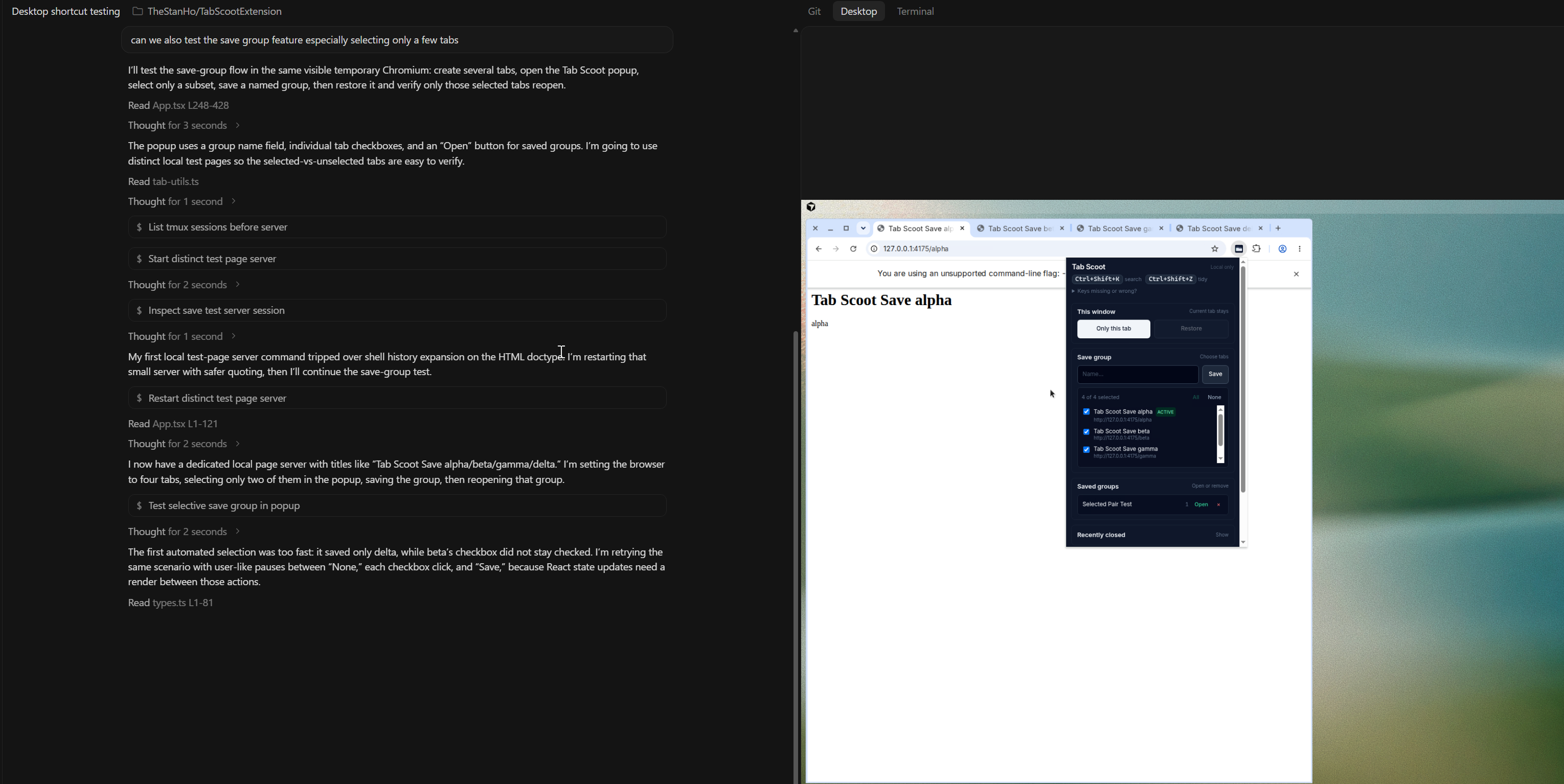
Desktop View during an agent session: live progress, terminal test output, and visual evidence from UI runs.
When I asked the agent to run the tests and share a recording, Cursor produced a video of the full run—build, Chromium smoke test, and UI checks—so I could replay what happened without re-running locally. That is separate from the product demo above; this is the agent’s test session:
Screen recording from a Cursor Cloud agent run of the Tab Scoot test suite (build, smoke test, and UI checks).
For post-MVP work I mainly used GPT-5.5 High as the Cloud agent model.
What I would tell another developer trying Cloud agents + GitHub
- Connect the repo early — integration pays off once the agent sees manifests, scripts, and prior patterns.
- Use branches — let the agent propose on a branch; you merge when tests and manual checks pass.
- Let the agent run the tests — Vitest and smoke scripts are most valuable when the agent executes them and fixes failures in the same session.
- Keep Desktop View open — you can watch file edits, terminal output, and UI screenshots or recordings without guessing what happened off-screen.
- Pick a model deliberately — I defaulted to GPT-5.5 High for harder reasoning; adjust if a task is mostly mechanical.
- Ship something small — a Chrome extension, a CLI, a static site—so you feel the full loop: code → assets → publish, not just a tutorial repo.
That is the shift I noticed: it is less “AI writes my app” and more “I run a tighter loop with a capable assistant that knows my GitHub project.” For a side project with a store listing at the end, that was enough to finish; for day job DevOps work, the same pattern applies to pipelines, Terraform, and runbooks.
Screenshots the agent helped produce
These are the same assets on the product site and in the store listing:
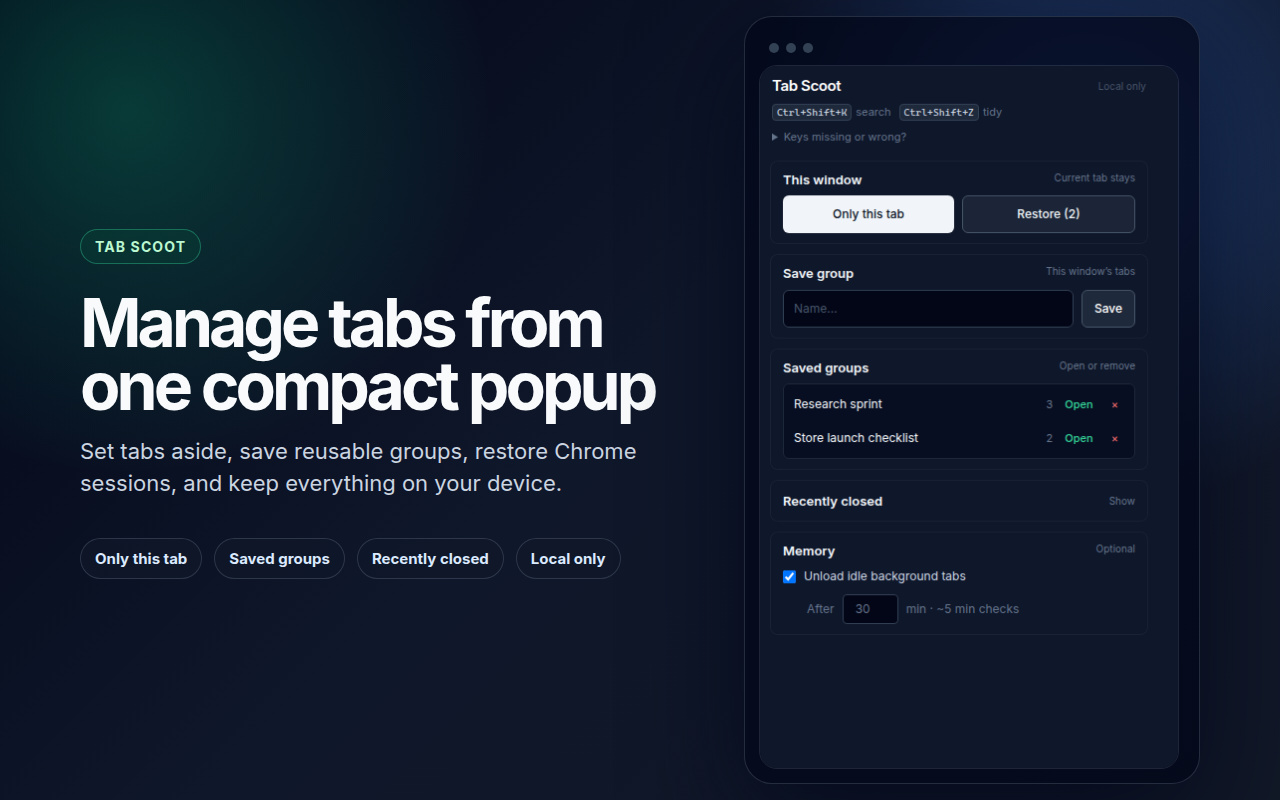
Popup overview — current window, set-aside, save group, and shortcut hints.
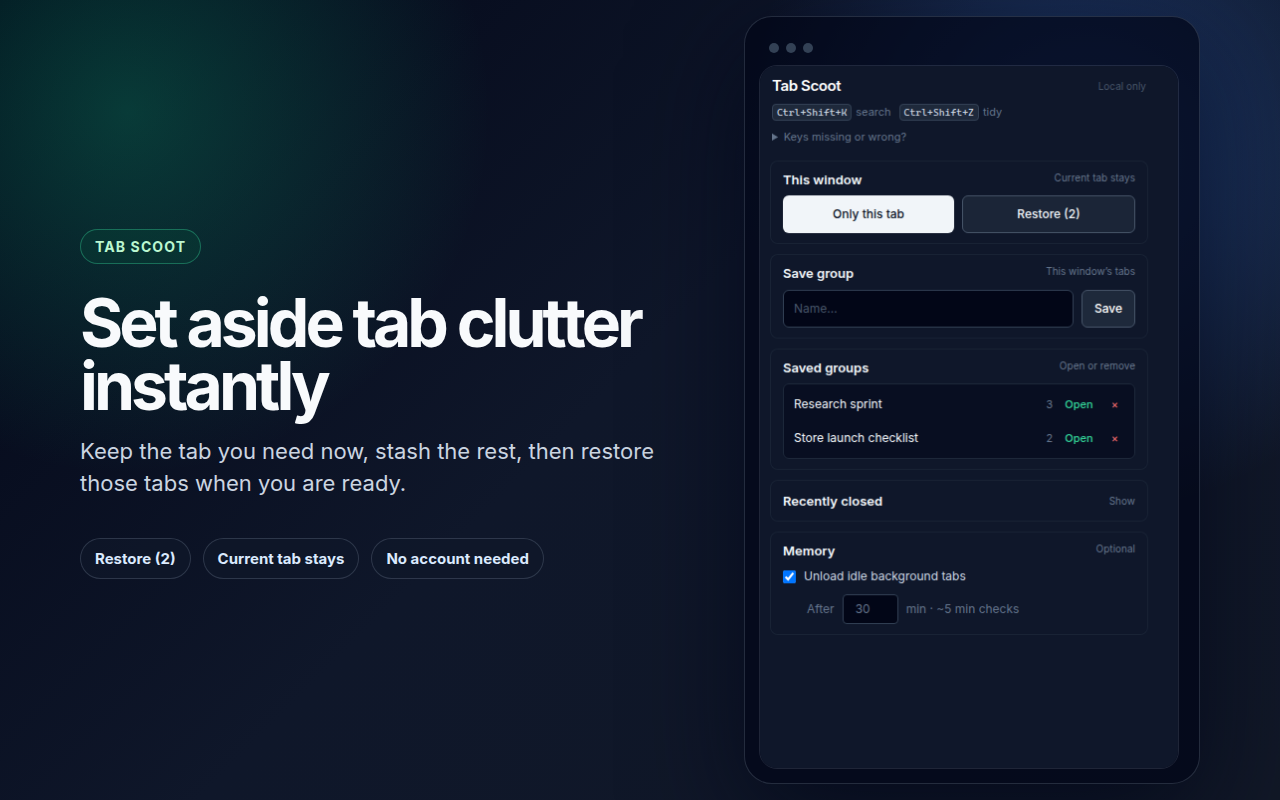
Set-aside mode — keep the tab you’re focused on; stash the rest for later.
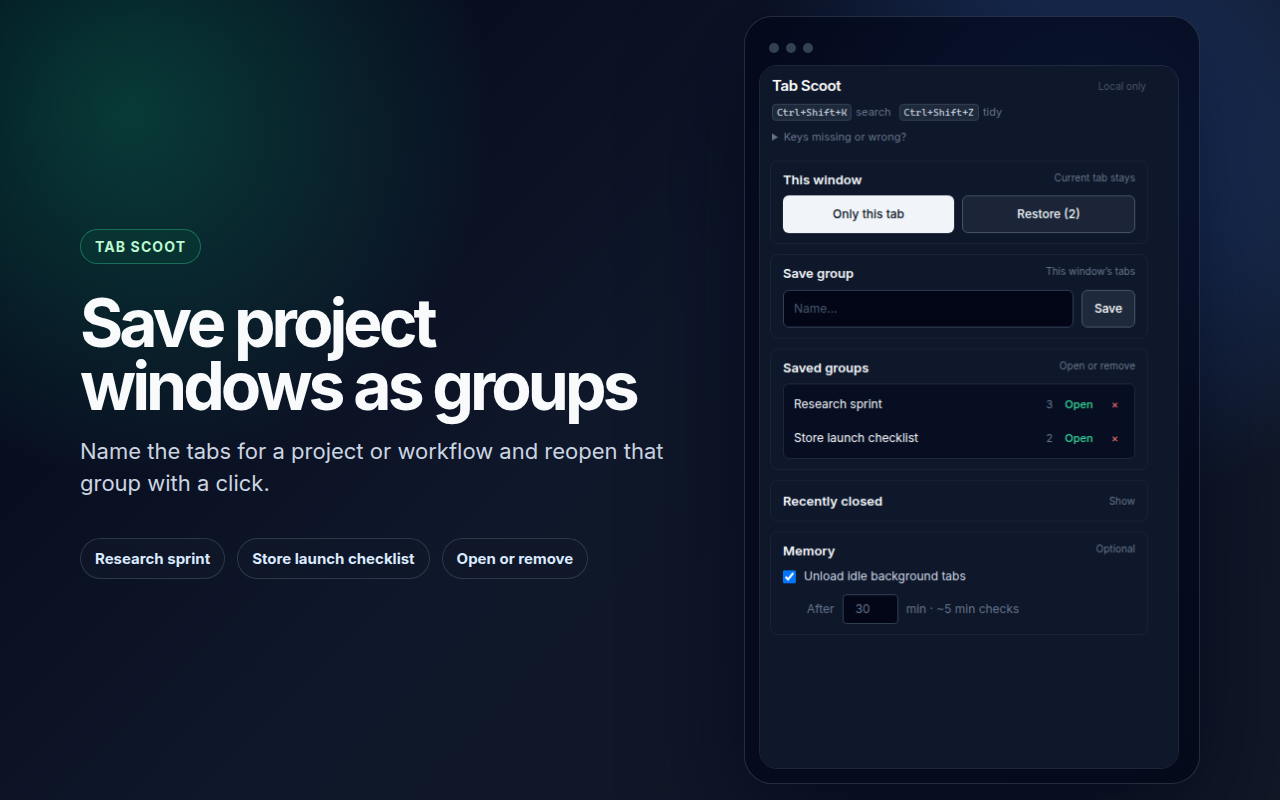
Saved groups — open or remove named groups from the window.
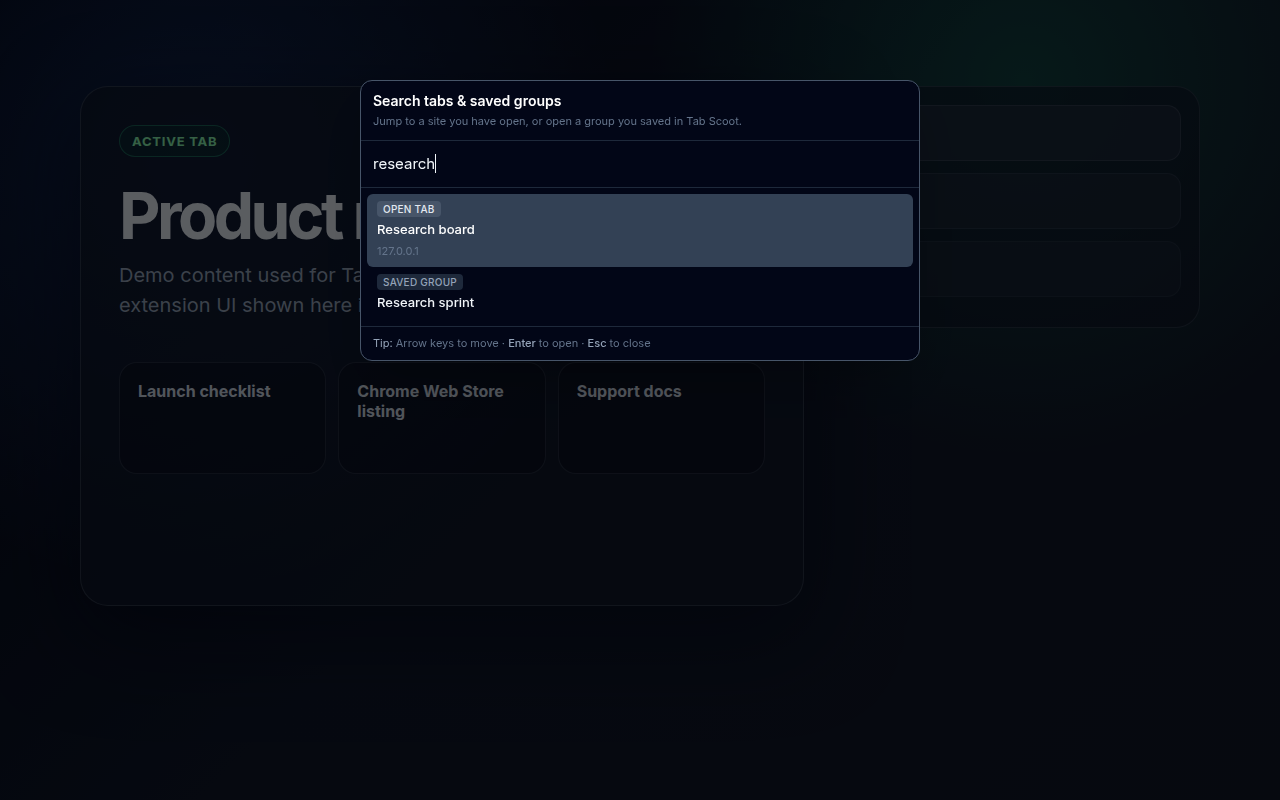
Command palette — fuzzy search across tabs and groups; Enter to jump.
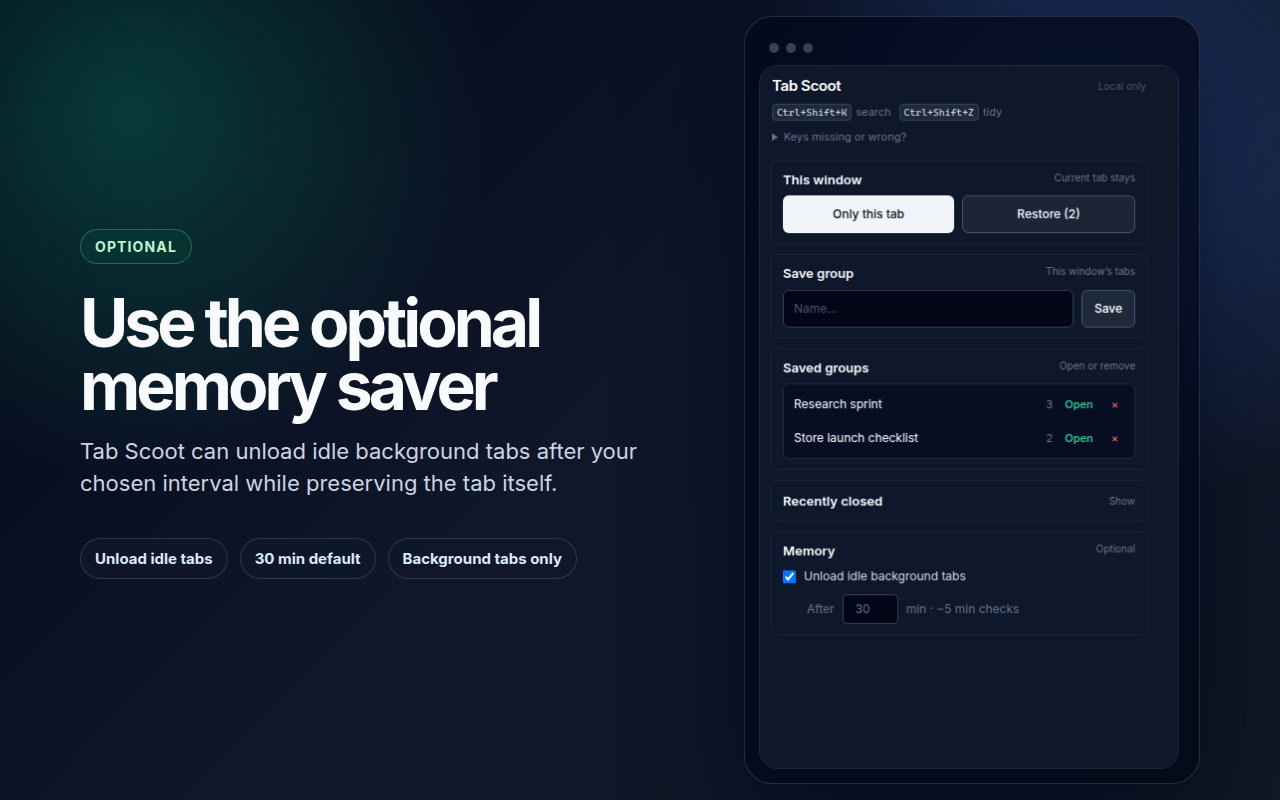
Optional memory saver — discard idle background tabs to reduce RAM.
Publishing checklist (what I actually had to do)
Publishing is not “upload and you’re live.” There is a Google-side gate before your first listing goes public.
Developer account and one-time fee
Before you can publish, you need a Chrome Web Store developer account (Google Developer account for the store). Registration includes a one-time fee—in my case £5—to verify you as a publisher. That is separate from building the extension; you pay it once to unlock the developer dashboard, not per release.
Upload, review, and permission justification
After the account is set up, the technical and policy work looks like this:
- Build a zip from
dist/withmanifest.jsonat the root (not the repo root). - Host privacy policy at a stable HTTPS URL—tabscoot.stanho.dev/privacy.html.
- Upload screenshots and promo images at required dimensions; keep short and long descriptions aligned with real behaviour.
- Declare data use accurately in the developer dashboard (local-only; no sale of user data).
- Submit the package for review — you upload the extension, but it does not go public immediately. Google reviews it first.
- Justify permissions — for each capability in
manifest.json(tabs,sessions,scripting, and so on), you explain why Tab Scoot needs it and how it ties to tab management. Vague answers slow or block approval; I aligned dashboard text with the permission table in the extension README and privacy policy. - Wait for approval — in my experience this took a few days. Only after review passed could I publish to the store.
Plan for that waiting period in your timeline: code can be “done” while the listing is still in review.
Version 1.0.12 was live on the store as of mid-May 2026; the extension repo continues to iterate on main with CI guarding regressions.
What I’d do differently next time
- Register the developer account early—pay the one-time fee and get familiar with the dashboard before you think you are ready to ship.
- Start the privacy URL on day one—it unblocks the store form and forces clear data-language early.
- Write permission justifications while you build—do not leave them for the submission form at midnight.
- Keep store copy and
PRIVACY.mdin one source of truth—I synced three places (dashboard, hosted HTML, repo markdown); a single generator would help. - Automate store screenshots early—use a capture script in the repo and regenerate listing images whenever the UI changes, instead of manual screenshots at the last minute before submit.
- Scope v1 ruthlessly—shipping set-aside + groups + palette was enough; memory saver stayed optional with explicit warnings.
Links
- Chrome Web Store: Tab Scoot
- Product & privacy site: tabscoot.stanho.dev
- Privacy policy: tabscoot.stanho.dev/privacy.html
If you’re a DevOps-minded developer looking for a bounded side quest, “ship an extension to the store” is a great one: real users, real policies, and a finish line you can see in the Web Store dashboard. Tab Scoot was mine—and it doubled as a practical course in Cursor Cloud agents and GitHub integration, so I could see firsthand how developers nowadays can take advantage of agent-assisted workflows without giving up review, tests, or ownership of what ships.